How to use Mimicore in Skype
Skype lists the virtual microphone like any other mic. Choose it once in the audio settings, start Live, and test the call.
Windows 10 or 11, 64-bit. A graphics card is recommended for live AI voices. See the system requirements.
- Account
- Audio & video
- Calling
Microphone
- CABLE Output (VB-Audio Virtual Cable)
- Microphone (USB Audio Device)
- Headset Microphone
Automatically adjust microphone settings
Step by step
- 1
Set up the virtual microphone once
In Mimicore, open Live. If it says no virtual microphone is installed, press Set up virtual mic and follow the prompts. Windows asks for permission; click Yes. If Windows asks for a restart, restart and open Mimicore again.
- 2
Open Skype's audio settings
In Skype, click the three dots next to your name, choose Settings, then Audio & video.
- 3
Choose CABLE Output as the microphone
Under Microphone pick CABLE Output (VB-Audio Virtual Cable) and turn off Automatically adjust microphone settings, so Skype does not change your level.
- 4
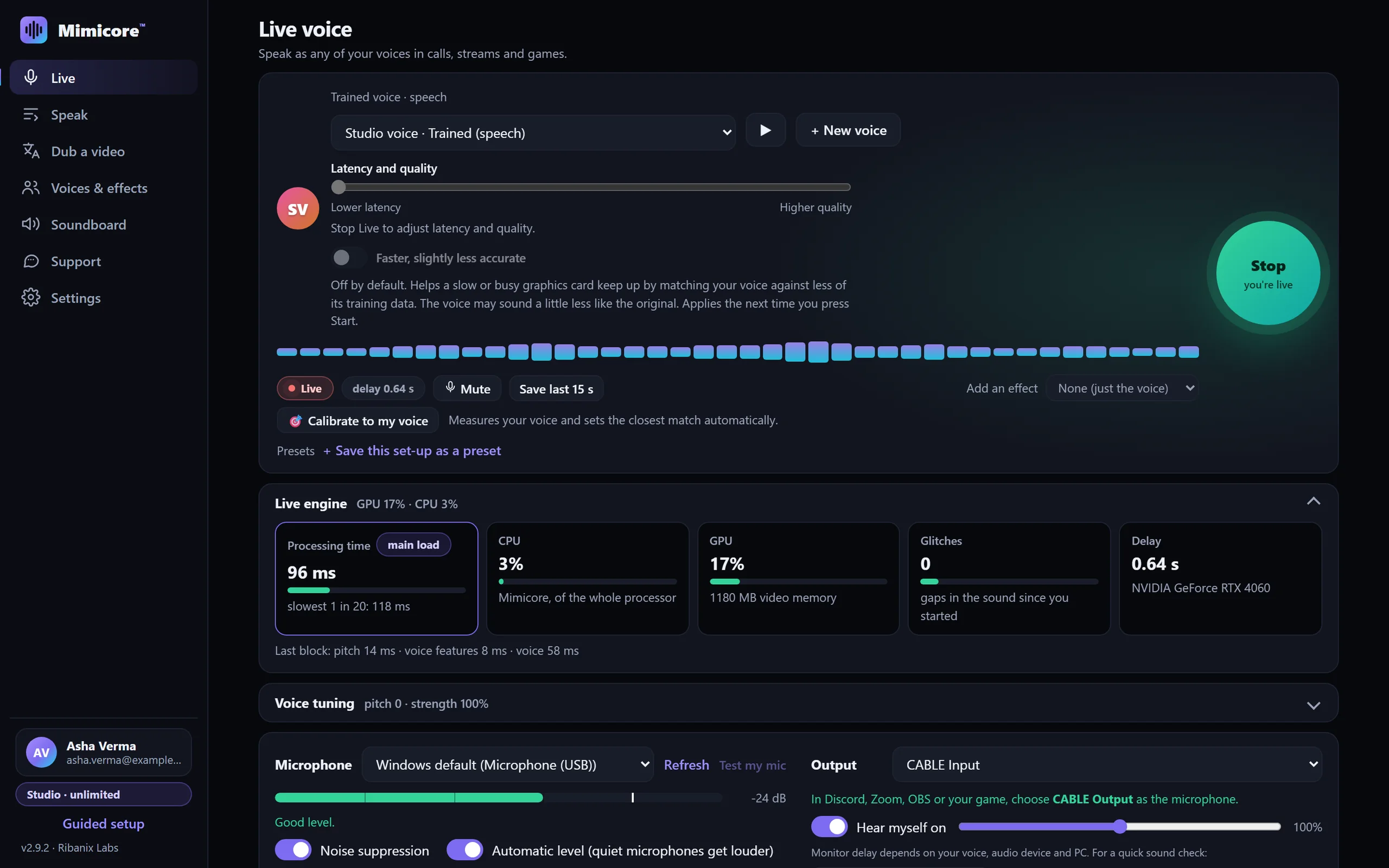
Pick a voice and press Start
On the Live page choose one of your voices (or one of the free effects) and press the big Start button. The Live pill turns on and an estimated delay shows. The delay depends on your PC and, for trained voices, on the Latency and quality slider: keep it toward the left for calls and games, because every step to the right adds delay you will hear.
- 5
Make a test call
On the same page use Make a free test call: speak and Skype plays your voice back. Then call your contact.
Tips
- Wear headphones. If your speakers are on, your microphone can hear them and the changed voice will echo back.
- Menus differ a little between Skype versions; look for Audio & video or Audio devices in Settings.
- Only use a cloned voice you have permission to use, and tell people when you use a changed voice.
Questions
Why can nobody hear me in Skype?
Check that Skype's Microphone is CABLE Output, that Mimicore shows Live, and that Mimicore's Output on the Live page is CABLE Input.
Can I hear myself?
Yes. Turn on Hear myself on Mimicore's Live page and use headphones.
Is my voice sent to your servers?
No. Voice processing runs on your PC. Skype sends the audio to the call as usual.
Other guides: Discord · OBS Studio · Zoom · Microsoft Teams · games · Google Meet · Telegram · Steam voice chat · VRChat · Twitch · Slack · WhatsApp Desktop · Roblox · Voice gallery · Free Discord voice changer · Help and FAQ